
1.4 - Merges
Merging occurs whenever you want to merge changes from one branch to another - or the same branch, but from a local and remote repository.
What do merges do?
Merges are git’s way of combining changes from two branches into one.
Let’s run through some common situations, using a file hello.txt.
Here’s its initial contents:
Changes only one one branch
Let’s say that we have two branches - main and spanish.
If we branch off of main to create spansh, then we add this to
hello.txt (changes are highlighted):
We can now merge spanish back into main to effectively “replay” that
change onto the contents of the file hello.txt on main.
This is easy.
The same thing happens if we had instead made the change on the main
branch. As long as the changes from each branch don’t conflict, we’re good to
go.
Changes to both branches
This is where things can get tricky. Let’s say that we left the modification to
hello.txt in the spanish branch, but we added a new file,
goodbye.txt in a commit on main (after we created the branch spanish).
This leaves each branch with changes since the most common commit ancestor.
This is where things can - but don’t always - get very difficult for git
to decide what to do.
In our example, it’s okay, because the changes don’t conflict with each other. We can apply both commits’ changes and they don’t interact. This is easy, and git performs this step automatically.
However, if we had instead removed the hello.txt file in the main
branch, we would have two branches with different, and conflicting, changes.
One branch’s changes say to delete the file, but the other says we add to it.
This is a situation that git can’t remedy itself, so it will require more
work from the user to reconcile.
This is called a merge conflict and can be very difficult to work through.
Example
Merges, especially merge conflicts, are sometimes difficult at first to handle. Let’s run through an example merge conflict and see what to do.
We’ll be continuing our project that we’ve been working on. See 1.2 - What is git? if that project isn’t ready yet, or you want to start over.
Create conflicting commits
Now, we’re going to make two commits:
The first commit, on a new branch
feature, should include some modification (doesn’t really matter what) to our filehello.txt.The second commit should include the deletion of the file
hello.txt, and should occur onmainafter thefeaturebranch is created.
Try doing this yourself using the resources already found in this chapter. We’ll walk through the second commit, but the first one is up to you. I’d suggest looking at 1.2 - What is git? for reference if you get stuck.
Tip
This book is not the only resource you should be using. If you ever get stuck and feel the book isn’t dense enough to contain all the information you need, simply search google. The ability to search for the solution to a particular problem is harder than it sounds; however, it’s an important skill to have nonetheless.
To remove a file, select it in the Explorer and simply press Delete on the
keyboard (Ctrl and Backspace works too). We also can just right-click
on the file, then select Delete.
Once the file is deleted, navigate to the Source Control panel. We now see
this:
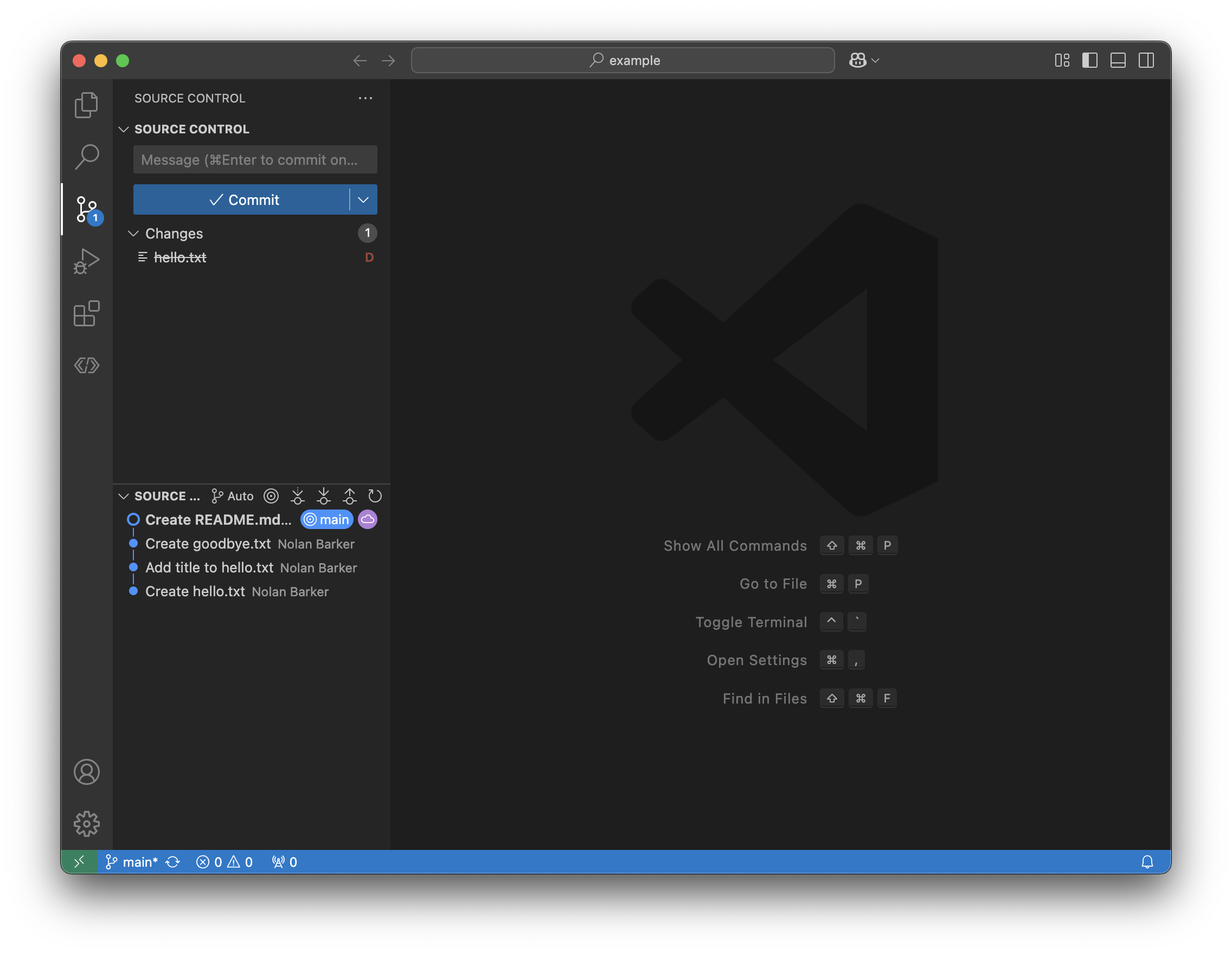
Take note of two things:
The filename is crossed out, to indicate that it has been removed from the project.
It has the letter
Dnext to it, further indicating deletion.
Stage the change just like any other, and we can now commit the deletion.
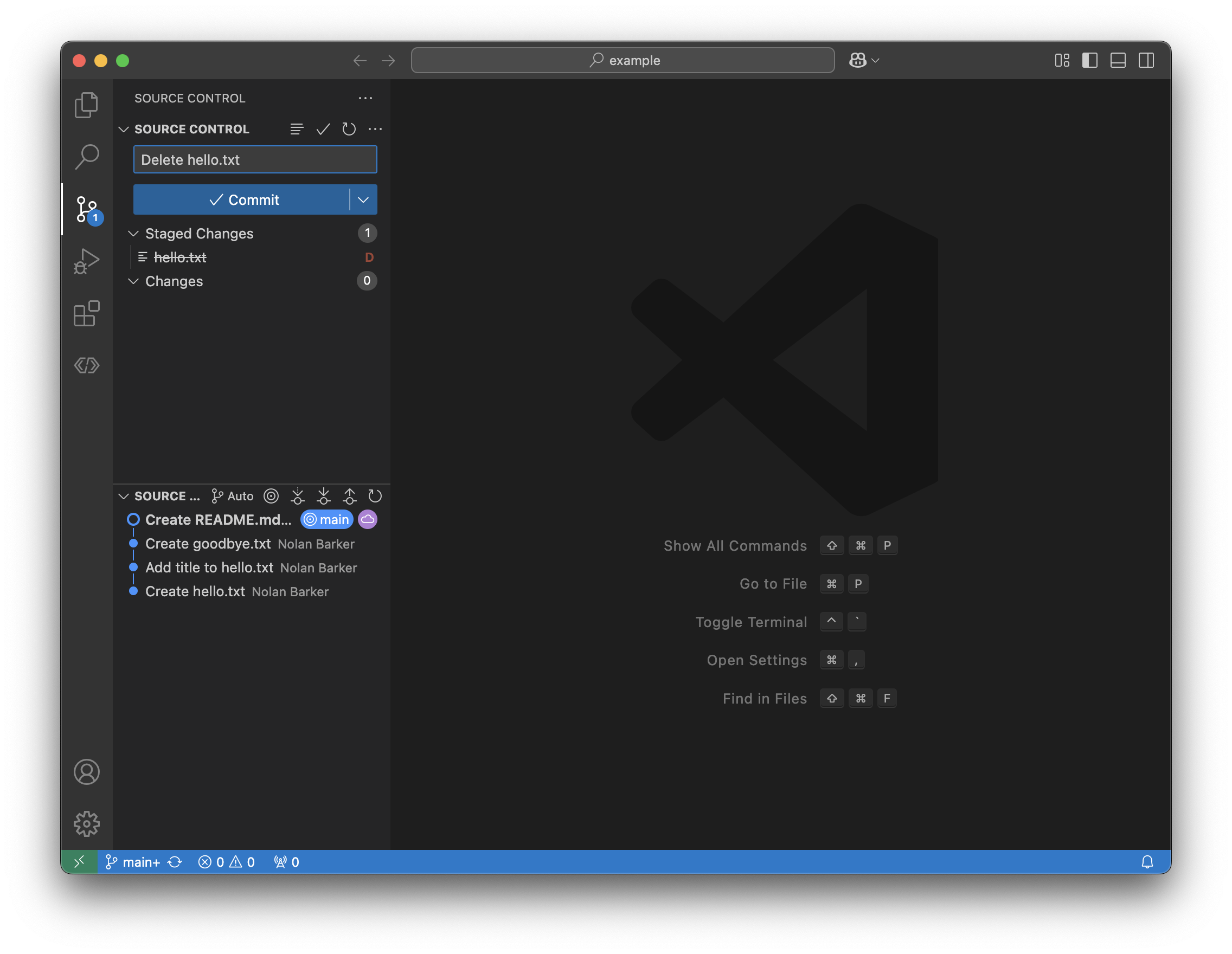
Note
We’re given the option to Sync Changes. This would push and pull
changes so that we’re “in sync” with the remote repository (GitHub). This
would currently only involve pushing these changes, not pulling anything -
there’s no updates to the git history since we last pulled.
Is deleting forever?
The way that we just deleted a file only introduces a commit in which the file is deleted. This means that previous commits that still had the file will continue to have the file, because we can’t modify past commits.
So deletion like this is recoverable. The file still exists in the git history, back from before it was deleted.
This is one of the many reasons that tools like git are so powerful - no
matter what you do, you can always recover. And pairing your code up with
GitHub introduces more safety. Even if the computer that the code was
written on is lost in the deep sea, you can just pull the repository from
GitHub and continue writing code.
Create merge with conflicts
Let’s now try to merge the two branches. We need to make sure we’re on
main, because that is the branch that we want the changes from feature
to come from.
To merge the two branches, we select the three dots next to Source Control
and then Branch > Merge.
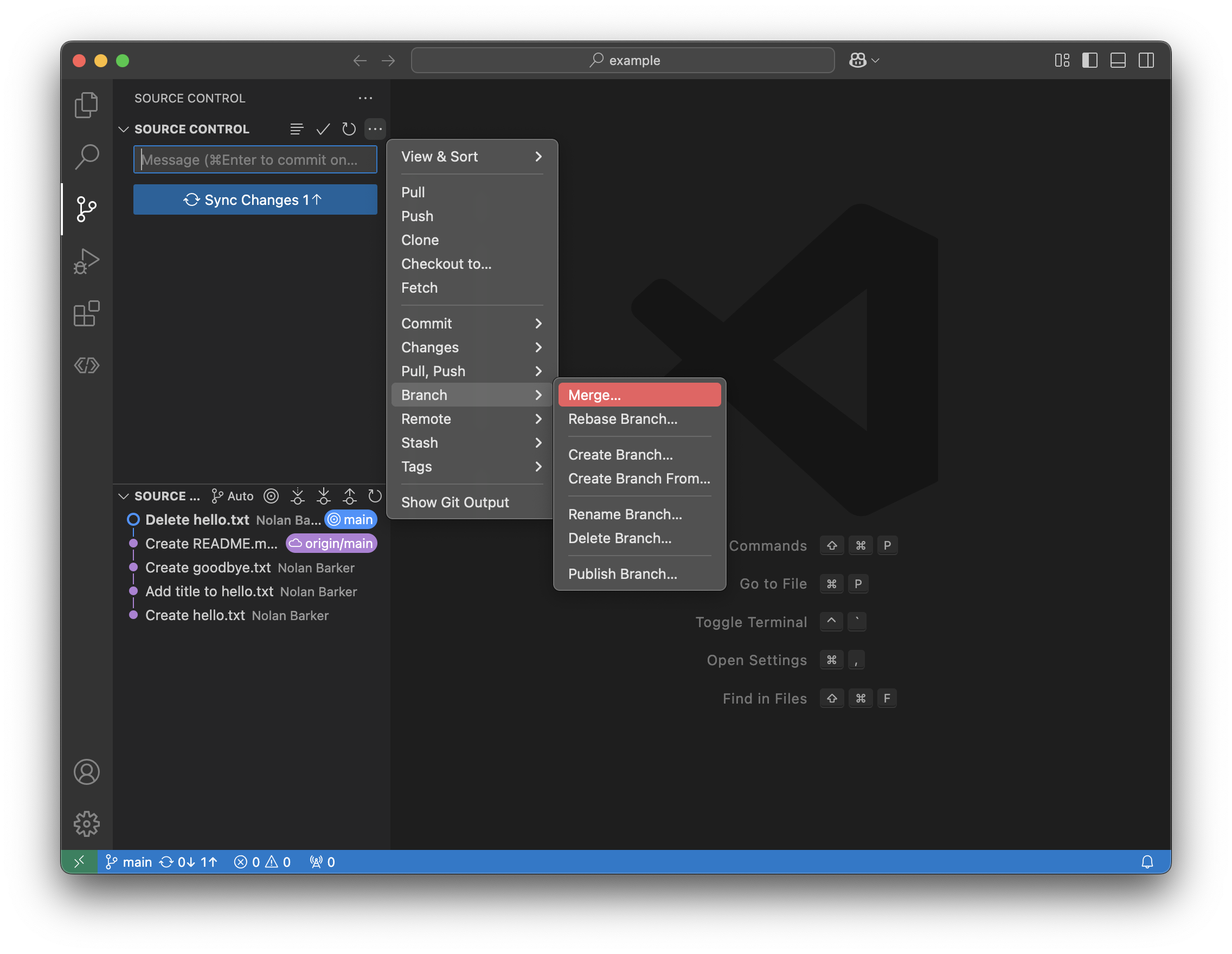
When asked for a branch, select feature from the list that appears. We want
changes from feature to apply to main
Then something happens:
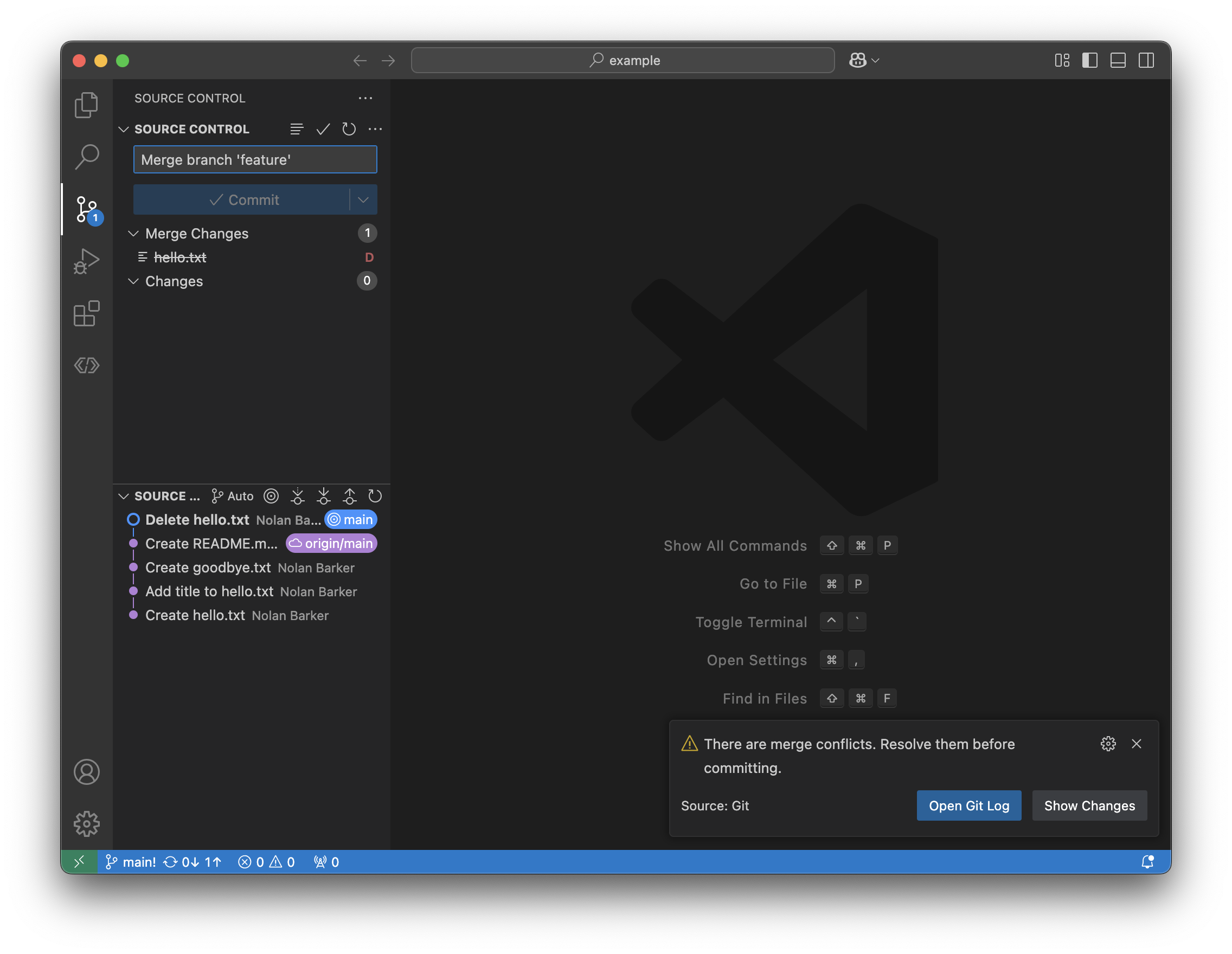
Notice the new section under Source Control called Merge Changes.
This message tells us that git is having an issue figuring out how to
combine the changes from two branches.
It has the following two changes:
Delete the file
hello.txtDon’t delete the file
hello.txtand instead add to it.
It can’t do both changes, because they conflict. Thus, this situation we’re in is called a merge conflict.
To resolve these, we need to manually intervene and tell git what to do.
In this case, we can press the + button next to the file hello.txt in
Source Control.
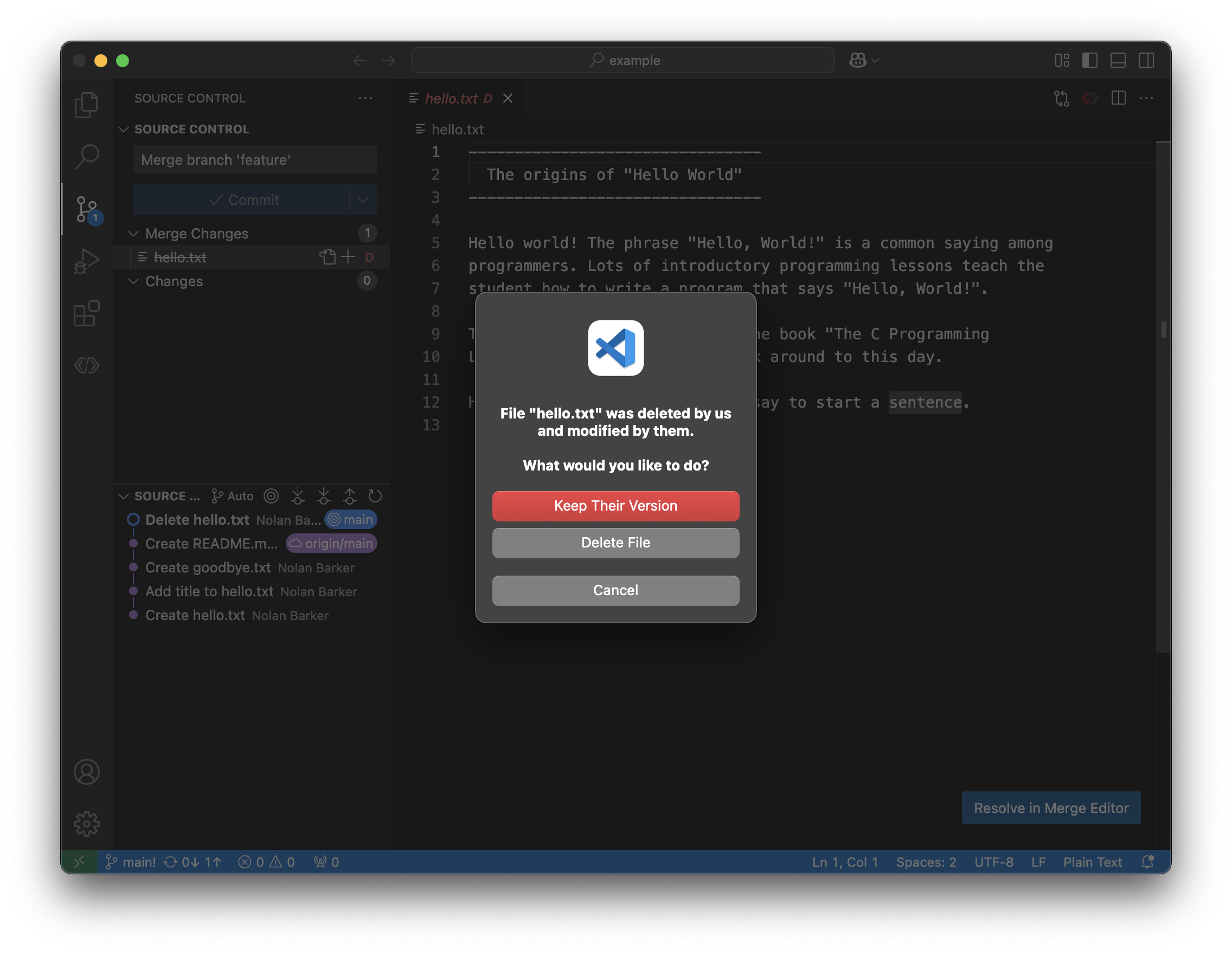
Notice how it says “us” and “them”. In this case, “us” refers to the current branch’s authors, who deleted the file. “Them” refers to the developers on the other branch, who modified the file.
VS Code is smart enough to detect that there are really only two options here, so it gives us the choice: delete or modify?
Let’s go with modify. Select “Keep Their Version” because that is the version that has the modified file.
Then note a few things:
The color of the filename
hello.txtchanges from red to green. It has moved from a breaking merge conflict to a regularly staged file being added. It’s not being “modified” because the last commit onmain- the active branch - removed that file, so we need to re-add it to the list of filesgittracks.The filename moved from the category
Merge ChangestoStaged Changes. This means that we have the file (its modifications) prepped to be committed.
At this point, we’ve already got a commit message ready, so let’s commit.
Thus, the merge issue is solved.
Important
This was a very simple merge conflict. More often, these will
involve multiple additions to the same file, but with different changes.
You’re going to need to tell git which files are the most up-to-date,
which takes a little more work. It’s important that the correct changes are
chosen as not to delete important code, so reach out to a lead or mentor if
you ever get stuck.
If you really want to master git and version control, try repeating this
exercise, but instead of deleting the file, make a different change. See
how the two changes conflict. Make sure that the merges do what you expect.
There’s very rarely a good substitute for real world experience. Go make
stuff conflict!